

AI has quietly become the invisible coworker behind how people write, research, design, and collaborate every day. What used to take hours drafting documents, preparing slides, summarizing meetings, or designing visuals can now be done in minutes with the right mix of free AI tools. The goal of this guide on the “8 Best Free AI Tools for Your Everyday Work” is not just to list trendy apps, but to spotlight tools that actually reduce friction in your workflow, whether you are a student, freelancer, creator, or part of a remote team.
Microsoft Copilot is a general‑purpose AI assistant available free on the web, mobile, Windows, and Edge, making it one of the easiest ways to add AI to daily work without extra cost.
Key features
● Chat assistant for drafting emails, summarizing articles, and answering questions with live web grounding.
● Image generation (Designer) with around 15 free “boosts” per day for visuals like thumbnails and social posts.
● Works across devices (web, mobile, desktop) so you can start a query on PC and continue on phone.
Pros
● Free access to GPT‑4‑class models during non‑peak hours with no subscription needed.
● Good for mixed tasks: writing, quick research, light coding, and image generation in a single interface.
Cons
● Falls back to older models like GPT‑3.5 at peak times, which can reduce quality.
● Deep Microsoft 365 document integration is locked behind paid Copilot Pro / Microsoft 365 plans.
Best use case
● Everyday “sidekick” for drafting, summarizing, and fact‑checking directly in the browser, especially if you already use Windows, Edge, or Microsoft 365.
Perplexity AI is an AI answer engine designed for research and factual questions, combining large language models with live web citations.
Key features
● Conversational search that returns concise answers plus linked sources, ideal for quick desk research.
● Threaded projects and follow‑up questions so you can refine research like you would with a human assistant.
● Free plan with generous daily queries and access to strong models, often GPT‑4‑class via hosted infrastructure.
Pros
● Citation‑first experience, making it easier to verify claims and pull references for blogs or reports.
● Very strong at condensing multiple sources into readable summaries for briefs, background research, or competitor checks.
Cons
● Not designed for heavy document editing or long‑form content like a full‑fledged writer.
● Advanced features and higher limits live on paid tiers, which teams will likely need.
Best use case
● Fast, trustworthy research for blog outlines, market overviews, and “what’s the latest on X?” questions in daily work.
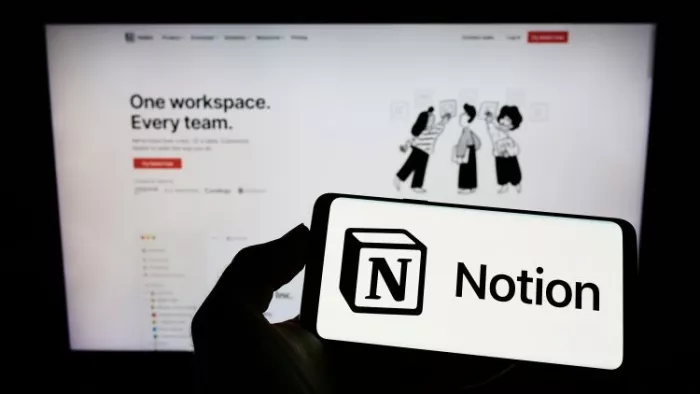
Notion’s main workspace (notes, wiki, task boards) is genuinely free, and AI features are available as a small one‑time trial for quick tests.
Key features
● All‑in‑one workspace for docs, personal wiki, and light project management on the free plan.
● Notion AI trial: automatic summaries, rewrite, translation, and idea generation inside pages (20 AI responses total per workspace).
● Templates for meeting notes, content calendars, and knowledge bases that work fine without ongoing AI usage.
Pros
● Powerful free workspace even after the AI trial ends, ideal as a central hub for work.
● The AI trial is enough to test summaries and rewrite flows on your own content before deciding to upgrade.
Cons
● Notion AI is not “fully free”: after 20 AI responses per workspace, you must upgrade to Business or Enterprise for ongoing AI use.
● Heavy AI users will quickly hit the trial cap, which limits value if you expect daily AI assistance in Notion.
Best use case
● Organizing your entire workflow (docs, tasks, SOPs) in Notion for free, and using the AI trial to build a few core templates (e.g., meeting‑note summarizers) you can then maintain manually.
Gamma is an AI presentation and document tool that turns plain text prompts into polished slide decks, memos, and one‑pagers.
Key features
● AI‑generated slide decks from prompts, outlines, or imported docs, with auto‑designed layouts.
● Interactive web‑style presentations that can be shared via links, useful for async teams.
● Free plan with limited number of workspaces or decks, enough for occasional presentations.
Pros
● Huge time‑saver for non‑designers who need clean decks or reports out of written notes.
● Outputs are web‑native and responsive, so they work well in remote or hybrid settings.
Cons
● Free tier usually caps number of AI‑generated decks and export options.
● Branding, advanced analytics, and collaboration sit behind paid tiers.
Best use case
● Quickly turning research notes or blog outlines into internal presentations, client‑ready decks, or visual explainers without touching PowerPoint.
Zapier is best known as a no‑code automation tool, and its free plan plus AI features can handle many small, everyday workflows.
Key features
● Connects popular apps like Gmail, Slack, Google Sheets, and Notion with automated “Zaps.”
● AI‑powered fields that can transform text, classify data, or generate short copy inside workflows.
● Free tier with a limited number of tasks per month, enough for light personal automation.
Pros
● Automation plus AI in one place, ideal for reducing manual copy‑paste across tools.
● Very broad app ecosystem, so you can link most of the tools you already use.
Cons
● Free plan has strict limits on monthly tasks and advanced features.
● Complex, multi‑step workflows usually require paid tiers.
Best use case
● Automating repetitive admin such as copying form responses into sheets, sending notifications, or auto‑tagging leads, with AI helping to clean or summarize text on the fly.
Otter.ai is a transcription and meeting‑notes assistant that turns spoken conversations into searchable text with action‑oriented highlights.
Key features
● Live transcription for meetings, webinars, and interviews with speaker identification.
● AI‑generated summaries and key points that help you skim calls instead of rewatching them.
● Free plan with limited monthly transcription minutes and imports, suitable for individuals.
Pros
● Very useful for students, journalists, and professionals who spend a lot of time in calls or lectures.
● Searchable transcript history becomes a lightweight knowledge base over time.
Cons
● Free plan caps minutes per month; heavy users will need to upgrade.
● Accuracy can drop with poor audio, accents, or noisy environments.
Best use case
● Capturing and summarizing recurring meetings or classes so you can stay present in the conversation and review key details later in minutes.
Canva remains one of the most user‑friendly design tools, and its free plan now includes AI‑assisted content and image generation.
Key features
● Drag‑and‑drop editor with a large library of free templates for social posts, presentations, and blog graphics.
● AI features such as Magic Media for image generation and Magic Design for content variations on the free tier (within usage caps).
● Collaboration and brand kits (with some limits) that keep team visuals consistent.
Pros
● Beginner‑friendly but powerful enough for serious marketing collateral.
● Free plan is generous for individuals and small teams, especially for social and blog visuals.
Cons
● Some templates, stock images, and advanced AI limits are reserved for Pro users.
● Heavy image generation or brand‑heavy teams will likely need paid plans.
Best use case
● Designing thumbnails, social creatives, and simple infographics with AI‑assisted layouts and images, without needing a professional designer.
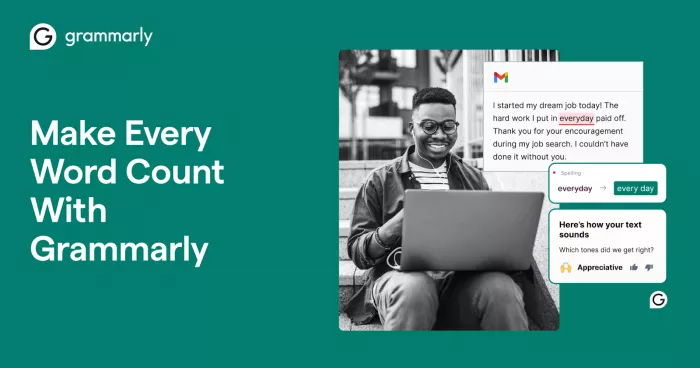
Grammarly is a writing assistant focused on grammar, clarity, and tone, with a strong free plan and optional AI generation.
Key features
● Real‑time grammar and spelling checks across email, browsers, and documents.
● Clarity and tone suggestions that make writing more concise and professional.
● AI‑assisted rewrites and small‑scale generation (subject lines, short replies) with limits on the free tier.
Pros
● Reliable proofreading that catches common errors and awkward phrasing in everyday writing.
● Integrates into browsers and common writing apps, so it fits seamlessly into daily workflows.
Cons
● Deep rephrasing, structure suggestions, and premium AI features are paywalled.
● Can occasionally be conservative, favoring very “safe” corporate language.
Best use case
● Polishing emails, LinkedIn posts, and documents so they read clean and professional, especially for non‑native English speakers or high‑volume writers.
| Tool | Main strength | Free plan limitations (high level) | Everyday best use case |
| Microsoft Copilot | General assistant | Peak‑time model downgrades; limited M365 integration. | Drafting, summarizing, quick research. |
| Perplexity AI | Research & citations | Query and feature caps vs paid tiers. | Fast, source‑backed research questions. |
| Notion | Workspace & notes | Only 20 AI responses in total per workspace. | Organizing docs/tasks with light AI testing. |
| Gamma | Presentations | Limited deck count and exports. | Turning text into decks and reports. |
| Zapier | Automation | Low monthly task quota on free plan. | Automating repetitive cross‑app tasks. |
| Otter.ai | Meeting notes | Monthly transcription minute cap. | Recording and summarizing meetings/classes. |
| Canva | Visual design | Restricted premium assets and AI usage. | Quick graphics, thumbnails, and social posts. |
| Grammarly | Writing polish | Advanced rewrite and style tools paywalled. | Polishing everyday writing and emails. |
For most people, the smartest way to start with AI is not to adopt dozens of tools at once, but to pick one or two that solve an immediate, painful problem like messy meeting notes, slow content drafting, or disorganized tasks and then layer in others as your comfort and needs grow.
If you want a simple starting stack, pairing a general assistant (Microsoft Copilot or Perplexity AI) with a writing helper (Grammarly) and a visual tool (Canva or Gamma) already covers a huge chunk of everyday work. As your workflows mature, automation with Zapier, structured documentation in Notion, and smarter meeting capture with Otter.ai can turn AI from a “cool extra” into a quiet backbone of your productivity. The real advantage will belong to users and teams who treat these tools as partners testing them, understanding their limits, and combining them intentionally so that by the time AI becomes standard in every workplace, you will already be several steps ahead.

Marketing teams often need images before a product is ready for a phot...
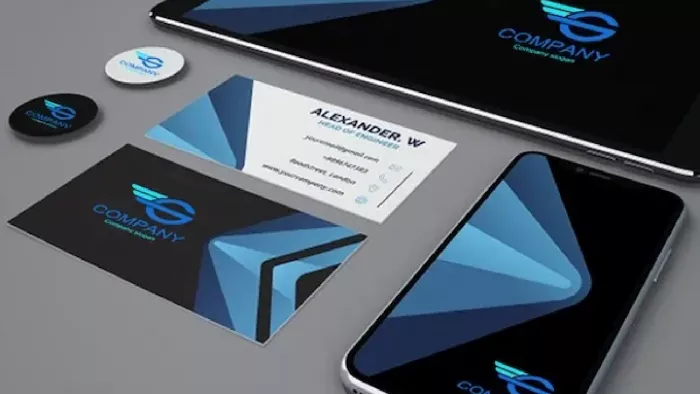
Creating a logo that will grab customers' attention is one of the main...

Enterprise software has a well-known failure mode. The demo goes great...

Most people who produce video at any real scale hit the same wall even...

A cinematic AI video needs more than realistic skin, dramatic lighting...

Have you noticed how difficult it is not to watch spoilers of a sporti...
Discussion