

If you have spent any time in the world of content creation, you have almost certainly come across both Canva and CapCut. On the surface, they seem to be chasing very different goals. Canva built its reputation as the go-to graphic design platform for people who never went to design school. CapCut, on the other hand, started as a mobile video editor before growing into something far more ambitious. Today both products have expanded so aggressively that they now overlap in ways that make a direct comparison genuinely useful.
This article does not declare one winner and send you home. The reality is more interesting than that. Depending on what you actually create, one of these tools will feel like it was built specifically for you, while the other will feel like an awkward compromise. The goal here is to give you enough real detail to figure out which one that is.
We looked at feature depth, pricing transparency, performance under real workloads, user sentiment from thousands of reviews, and the scenarios where each tool legitimately pulls ahead. By the end, you should have a clear picture of where your time and money are best spent.
| Category | Canva | CapCut |
| Primary Use Case | Graphic design, presentations, branding | Video editing, short-form content, reels |
| Best For | Social graphics, decks, print assets | TikTok, Reels, YouTube Shorts, long-form video |
| Free Tier | Yes (generous, with watermarks on premium) | Yes (very generous, no watermarks) |
| Paid Plans Start At | $15/month (Pro) | $7.99/month (Pro) |
| AI Features | Magic Write, Magic Edit, Background Remover | AI Cut, Auto Captions, Smart Crop, CapCut AI |
| Learning Curve | Very low (beginner friendly) | Low to moderate (gets complex for advanced edits) |
| Platform | Web, iOS, Android, Desktop App | Web, iOS, Android, Desktop App |
| Template Library | 3 million+ templates | 5,000+ video templates |
| Brand Kit | Yes (Pro+) | Limited (Business plan) |
When Canva launched in 2013, it had a single promise: drag-and-drop design that anyone could actually use. What started as a simple presentation tool has since grown into a complete creative platform used by over 170 million people across 190 countries. That growth is not accidental. Canva figured out early that most people doing creative work are not trained designers, and it built every single feature with that person in mind
| Category | Canva | CapCut |
| Primary Use Case | Graphic design, presentations, branding | Video editing, short-form content, reels |
| Best For | Social graphics, decks, print assets | TikTok, Reels, YouTube Shorts, long-form video |
| Free Tier | Yes (generous, with watermarks on premium) | Yes (very generous, no watermarks) |
| Paid Plans Start At | $15/month (Pro) | $7.99/month (Pro) |
| AI Features | Magic Write, Magic Edit, Background Remover | AI Cut, Auto Captions, Smart Crop, CapCut AI |
| Learning Curve | Very low (beginner friendly) | Low to moderate (gets complex for advanced edits) |
| Platform | Web, iOS, Android, Desktop App | Web, iOS, Android, Desktop App |
| Template Library | 3 million+ templates | 5,000+ video templates |
| Brand Kit | Yes (Pro+) | Limited (Business plan) |
When Canva launched in 2013, it had a single promise: drag-and-drop design that anyone could actually use. What started as a simple presentation tool has since grown into a complete creative platform used by over 170 million people across 190 countries. That growth is not accidental. Canva figured out early that most people doing creative work are not trained designers, and it built every single feature with that person in mind.

Canva Web Interface: Canvas editor with templates panel and design tools
The template library is Canva's most obvious advantage, and it is hard to overstate how much it matters. With over three million templates spanning social media posts, pitch decks, resumes, menus, posters, and even video content, you rarely have to start from scratch. More importantly, the templates are genuinely good. They are designed by professionals, organized by industry and purpose, and regularly updated to reflect current visual trends.
The design editor itself is smooth and predictable. Elements snap into alignment guides, fonts load quickly, color palettes apply across designs consistently, and the overall interaction model is intuitive enough that you can produce something polished within minutes of first using it. That speed matters enormously for small teams and solo creators who cannot afford to spend hours on a single asset.
•Magic Studio (AI Design Suite): Canva's AI layer includes Magic Write for text generation, Magic Edit for in-image editing, Magic Eraser for removing unwanted objects, and Magic Expand to extend image boundaries. These tools are embedded directly into the editor rather than tucked behind separate menus.
•Brand Kit: One of the most genuinely useful features for anyone running a business. You set your brand colors, fonts, and logos once, and Canva applies them across every design automatically. The Pro version takes this further with multiple brand kits.
•Canva Presentations: Slide decks that can be embedded, presented live, or converted to Powerpoint. The auto-layout feature resizes content when you change orientation, which saves an enormous amount of manual adjustment.
•Video Capabilities: Canva has been steadily expanding its video tools. You can now edit multi-track video timelines, add transitions, sync audio, and create animated social content. It is not CapCut, but it is capable enough for simple video needs.
•Collaboration: Teams can edit designs simultaneously, leave comments, and assign approval workflows. This is where Canva punches well above its weight class relative to standalone design tools.
•Integrations: Connects with Google Drive, Dropbox, Slack, HubSpot, Mailchimp, and dozens of other tools. For marketing teams working across multiple platforms, this matters a lot.
| Plan | Price | Storage | Key Inclusions |
| Free | $0/month | 5 GB | Basic templates, 1 brand kit, limited AI credits |
| Pro | $15/month | 1 TB | Full template library, unlimited AI, Brand Kit+, background remover, premium elements |
| Teams | $10/user/month | 1 TB/user | Everything in Pro, team workflows, admin controls, approval features (min. 3 users) |
| Enterprise | Custom pricing | Unlimited | SSO, advanced security, dedicated support, custom workflows |
The free tier is genuinely useful, which is relatively rare at this stage of SaaS pricing. You can design real things, share them, and publish them without paying anything. The watermark system only kicks in for premium elements and templates, not your own uploaded content. For individuals and early-stage projects, the free tier goes further than most competitors allow.
The Pro plan at $15/month is the sweet spot for individual creators who need the full feature set. The Teams plan at $10/user/month is excellent value once you factor in the collaboration and approval tools, which would cost significantly more from a dedicated project management platform.
| "Canva has completely replaced Adobe Illustrator for my social media workflow. I used to spend hours on one post. Now it takes 15 minutes." |
| — Marketing Manager, 4.8 stars on G2 |
| "The Brand Kit is the single best feature for anyone managing multiple clients. Set it up once and everything stays consistent without thinking about it." |
| — Freelance Designer, 4.7 stars on Capterra |
| "It is almost too easy. Sometimes I worry I am not really designing, I am just rearranging someone else's work. But the results look great, so I keep using it." |
| — Content Creator, 4.6 stars on Trustpilot |
| Review Metric | Score | Summary |
| Overall Rating (G2) | 4.7 / 5 | Consistently praised across 14,000+ reviews |
| Ease of Use | 9.2 / 10 | Top-rated in category among design tools |
| Feature Satisfaction | 8.8 / 10 | Strong, with requests for more advanced export options |
| Support Quality | 8.0 / 10 | Mixed reviews on live support response speed |
| Value for Money | 7.9 / 10 | Some friction with pricing at Pro tier for light users |
| Strengths | Weaknesses |
✓ Deepest template library in the category ✓ Brand Kit is a genuine time-saver for teams ✓ Collaboration tools are unusually strong for a design platform ✓ Free tier provides real value, not just a teaser ✓ Integrates with almost every marketing tool you already use ✓ Presentations mode is excellent for non-technical users | ✗ Video editing is capable but clearly secondary to design ✗ Limited granular control compared to dedicated design software ✗ Premium asset pricing stacks up quickly alongside subscriptions ✗ Print export quality not ideal for professional printing ✗ Customer support can be slow for complex issues |
| Criteria | Rating | Notes |
| Ease of Use | ★★★★★ 4.7/5 | One of the most intuitive tools in any category |
| Feature Depth (Design) | ★★★★★ 4.5/5 | Covers 95% of non-professional design needs |
| Feature Depth (Video) | ★★★☆☆ 3/5 | Functional but lags behind dedicated video editors |
| Performance & Speed | ★★★★☆ 4.3/5 | Browser app loads fast; occasional lag on large projects |
| Pricing Value | ★★★★☆ 3.9/5 | Free tier great; Pro can feel steep for light use |
| Customer Support | ★★★★☆ 3.8/5 | Email support adequate; no live chat on free tier |
| AI Tools Quality | ★★★★☆ 4.2/5 | Magic Studio is well-integrated and genuinely useful |
| OVERALL | ★★★★☆ 4.4/5 | Best-in-class for graphic design and team workflows |
| Canva is the right tool if your work is primarily static design or presentations. |
| It is ideal for: Marketing teams managing brand consistency across multiple creators. Small business owners who need professional-looking graphics without hiring a designer. Educators and non-profits who need fast, high-quality visual communication. Content managers running multi-platform campaigns who need a centralized creative hub. Anyone who needs to collaborate on designs with colleagues who have no design background. |
| It is less ideal for: Video-first creators who spend most of their time in a timeline editor. Professionals who need print-ready CMYK output. Developers who need API-level design automation at scale. |
CapCut was released by ByteDance (the company behind TikTok) in 2020 and almost immediately became the dominant mobile video editor for short-form content creators. The TikTok connection was both a blessing and a strategic advantage: CapCut was pre-optimized for exactly the format that TikTok popularized, and millions of creators who were already on that platform discovered it naturally.
What is interesting is what happened next. Rather than staying in its lane as a mobile video editor, CapCut expanded aggressively into web and desktop, added a template marketplace, introduced AI features, and started pushing into graphic design territory. Today it is a genuinely versatile platform that covers video editing, motion graphics, AI-powered generation, and basic design work.
CapCut Desktop Interface: Timeline editor with media panel and effects library
The video editing engine is where CapCut earns its reputation. The timeline is responsive, the cut controls are precise, and the real-time preview is smooth even on mid-range hardware. For mobile, it is almost unmatched in its category. The gesture controls are intuitive, multi-layer editing works cleanly, and the rendering pipeline handles 4K footage without the painful export times you get from older mobile editors.
The auto-captioning feature deserves a specific callout because it is genuinely good. CapCut transcribes speech in real time, generates styled captions with impressive accuracy across multiple languages, and lets you edit timing and style within the same interface. For any creator who publishes video with subtitles, this feature alone saves hours per week.
•AI-Powered Tools: CapCut has gone deep on AI. Auto Captions and Auto Cut are standout features. Smart Crop automatically reframes footage for different aspect ratios. The AI Video Generator lets you create short clips from text prompts. AI Voice Cloning and Lip Sync are available for more advanced productions.
•Template Library: Over 5,000 video templates covering trending formats for TikTok, Reels, YouTube Shorts, and LinkedIn. Templates are not just visual starting points; they include pre-timed animations, music syncing, and text placeholders that update dynamically.
•Desktop Timeline: The desktop version brings a full non-linear editing experience with multi-track audio, keyframing, color grading, and advanced masking. It handles RAW footage and higher bitrate files better than most browser-based editors.
•Sound Library: CapCut has an extensive royalty-free music and sound effects library, with curated playlists organized by mood and platform. The beat sync feature automatically aligns cuts to music rhythm, which is useful for fast-paced content.
•Stickers and Effects: Thousands of animated stickers, trending effects, and filter presets that are actively updated to reflect what is performing well on social platforms. The integration with TikTok trends makes these particularly current.
•Team and Business Features: The Business plan includes brand kits, team management, commercial licensing, and cloud storage for larger organizations. It is less refined than Canva's team features but functional for video-first workflows.
| Plan | Price | Storage | Key Inclusions |
| Free | $0/month | 10 GB | Full video editor, auto captions, 1080p export, CapCut watermark optional |
| Pro | $7.99/month | 200 GB | AI tools, no watermark, 4K export, premium effects, 1,000 AI credits/month |
| Business | $13.99/user/month | 2 TB | Brand kit, team collaboration, commercial license, priority support |
| Enterprise | Custom pricing | Unlimited | Dedicated account manager, custom integrations, SLA guarantees |
CapCut's pricing is one of its strongest competitive advantages. The free tier is remarkably generous. Unlike Canva, CapCut does not aggressively lock basic features behind a paywall. You can export full-quality video without a watermark on the free plan, which is a meaningful distinction. The Pro plan at $7.99/month is nearly half the price of Canva Pro and unlocks a comprehensive AI feature set.
The main caveat is the AI credit system. Pro users get 1,000 AI credits per month, and some of the more intensive AI features consume credits quickly. Heavy users of the AI generation tools may find themselves running low before the monthly reset.
| "The auto-caption feature alone saves me two hours on every video. I tried three other tools and none of them come close to the accuracy and editing flexibility CapCut gives you." |
| — YouTube Creator, 4.8 stars on App Store |
| "I switched from Premiere Rush to CapCut and honestly never looked back. For short-form content it is faster, more intuitive, and the templates are actually good." |
| — Social Media Manager, 4.7 stars on Google Play |
| "The desktop version is where CapCut really impressed me. I can do things that used to require DaVinci Resolve with a fraction of the learning curve." |
| — Video Producer, 4.6 stars on Trustpilot |
| Review Metric | Score | Summary |
| Overall Rating (App Store/Play) | 4.8 / 5 | One of the highest-rated creative apps in mobile stores |
| Video Performance | 9.1 / 10 | Rendering speed and timeline responsiveness are top-tier |
| AI Feature Satisfaction | 8.9 / 10 | Auto captions and AI cut receive consistent praise |
| Design Capability | 7.2 / 10 | Covers basics well but limited for complex static design |
| Support Quality | 7.5 / 10 | Community resources strong; direct support less accessible |
| Strengths | Weaknesses |
✓ Best-in-class video editor for short-form content ✓ Auto Captions accuracy is industry-leading ✓ Free tier is one of the most generous in the market ✓ Pro plan offers exceptional value at $7.99/month ✓ Desktop version handles professional-grade projects ✓ Trend-synced templates updated regularly | ✗ Static design tools are clearly a secondary priority ✗ ByteDance ownership raises data privacy questions for some users ✗ AI credit system can frustrate heavy AI users on Pro plan ✗ Collaboration features still maturing compared to Canva ✗ Customer support harder to reach for business users |
| Criteria | Rating | Notes |
| Ease of Use | ★★★★☆ 4.4/5 | Mobile is extremely intuitive; desktop has a short learning curve |
| Feature Depth (Video) | ★★★★★ 4.7/5 | Matches or exceeds tools costing 3x the price |
| Feature Depth (Design) | ★★★★☆ 3.5/5 | Adequate for basic graphics; not a design platform |
| Performance & Speed | ★★★★★ 4.5/5 | Excellent rendering, smooth on mobile and desktop |
| Pricing Value | ★★★★★ 4.7/5 | One of the best price-to-value ratios in the category |
| Customer Support | ★★★★☆ 3.8/5 | Community strong; direct support needs improvement |
| AI Tools Quality | ★★★★★ 4.5/5 | Auto captions and AI cut are class-leading features |
| OVERALL | ★★★★★ 4.5/5 | Best value video editing platform for modern creators |
| CapCut is the right tool if video is your primary medium. |
| It is ideal for: TikTok, Reels, and Shorts creators who publish video content regularly. YouTubers who want professional-quality editing without the learning curve of Premiere Pro or DaVinci Resolve. Podcasters who publish video versions of episodes and need accurate auto-captioning. Social media managers at agencies who handle high-volume video editing across multiple accounts. Independent creators on a tight budget who want the most powerful tool per dollar spent. |
| It is less ideal for: Teams who need robust collaboration and approval workflows for static design. Businesses that prioritize data privacy and are uncomfortable with ByteDance's data handling. Marketers whose output is predominantly brochures, presentations, and print-ready materials. |
Choosing between Canva and CapCut is rarely about which tool is objectively better. It is about which one fits the job you actually need done. Here is a direct comparison across the scenarios that matter most.
| Scenario | Canva | CapCut | Verdict |
| Creating social media graphics | Excellent | Good | Canva wins |
| Editing short-form video | Functional | Best in class | CapCut wins |
| Auto captioning video | Basic | Industry-leading | CapCut wins |
| Building a brand kit | Comprehensive | Limited | Canva wins |
| Team collaboration | Class-leading | Developing | Canva wins |
| Pricing for individuals | Moderate | Very competitive | CapCut wins |
| Presentations and decks | Excellent | Not available | Canva wins |
| AI video generation | Limited | Comprehensive | CapCut wins |
| Desktop performance | Good | Excellent | CapCut wins |
| Print and document output | Good | Not designed for it | Canva wins |
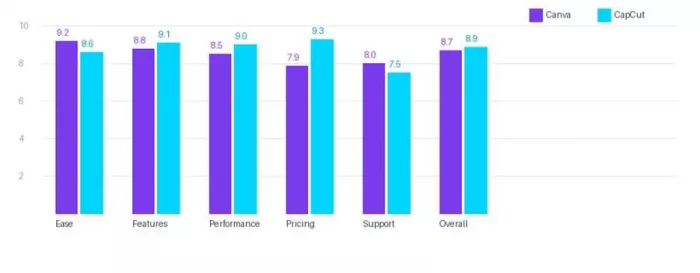
Side-by-side ratings comparison across six key evaluation criteria (scores out of 10)
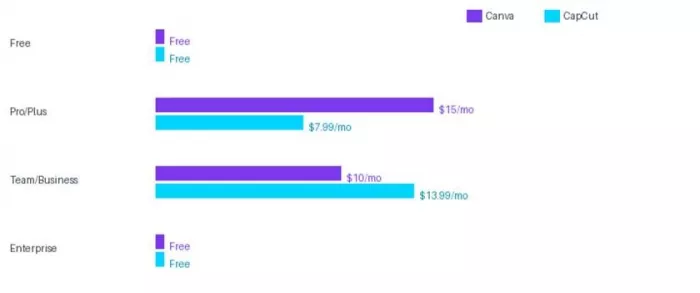
Monthly pricing across plan tiers: Canva (purple) vs CapCut (cyan)
There is a meaningful category of users who genuinely need both tools, and neither platform fully acknowledges this. If you are a social media manager running campaigns that include both static graphics and short videos, you will find yourself switching between the two constantly. Canva's video tools are good but not great. CapCut's design tools are useful but clearly an afterthought.
Some teams solve this by using Canva for design assets and CapCut for video production, treating them as complementary rather than competing. This actually works well in practice. The overlap is minimal enough that you rarely need to do the same task in both tools.
| Feature Area | Canva | CapCut | Detail |
| Social graphics | 9.5 / 10 | 7.0 / 10 | Canva has far more templates, layout control, and branding tools |
| Short-form video editing | 6.5 / 10 | 9.5 / 10 | CapCut built for this; timeline, effects, speed controls all superior |
| Presentation/slide creation | 9.0 / 10 | 2.0 / 10 | Canva presentations are a full product; CapCut has no equivalent |
| AI content generation | 7.5 / 10 | 8.8 / 10 | CapCut leads on video AI; Canva leads on image/design AI |
| Print and document | 7.5 / 10 | 1.5 / 10 | Only Canva is relevant for physical print output |
| Brand management | 9.0 / 10 | 6.0 / 10 | Canva Brand Kit is significantly more comprehensive |
| Mobile video creation | 5.5 / 10 | 9.8 / 10 | CapCut mobile is best in class; Canva mobile lags considerably |
| Collaboration | 9.0 / 10 | 6.5 / 10 | Canva real-time collaboration and approval workflows are superior |
If you have read this far, you probably already have a sense of which tool fits your situation. But here is the direct answer.
Choose Canva if your daily creative output involves social graphics, presentations, brand materials, or any kind of team-based design workflow. It is more expensive than CapCut at the paid tier, but the feature depth for design, the brand management tools, and the collaboration infrastructure justify the cost for anyone who depends on visual content professionally. The template library and the general polish of the interface make it the standard against which every other design tool is measured.
Choose CapCut if you create video content regularly, particularly for short-form platforms. The free tier alone outperforms most paid competitors for video editing. The AI features are genuinely useful rather than gimmicky. The pricing is fair. And the mobile experience is so smooth that you can produce broadcast-quality content without sitting in front of a desktop. For individual creators and video-first teams, it represents exceptional value at every price point.
| Our Recommendation: Most content creators in 2025 would benefit from both. Start with CapCut on the free plan for all video work and use Canva for everything design-related. The combined cost of the two free tiers is zero, and the combined capability covers the vast majority of content creation needs. |
| If budget requires choosing one: your answer depends entirely on your output ratio. More than 60% video? CapCut Pro at $7.99/month. More than 60% static design? Canva Pro at $15/month. |
| Evaluation Criterion | Canva Score | CapCut Score | Winner |
| Ease of Use | 9.2 / 10 | 8.6 / 10 | Canva |
| Feature Completeness | 8.8 / 10 | 9.1 / 10 | CapCut |
| Performance & Speed | 8.5 / 10 | 9.0 / 10 | CapCut |
| Pricing Value | 7.9 / 10 | 9.3 / 10 | CapCut |
| AI Tools | 8.5 / 10 | 9.0 / 10 | CapCut |
| Collaboration | 9.2 / 10 | 6.8 / 10 | Canva |
| Customer Support | 8.0 / 10 | 7.5 / 10 | Canva |
| Mobile Experience | 7.5 / 10 | 9.5 / 10 | CapCut |
| OVERALL | 8.7 / 10 | 8.9 / 10 | CapCut (marginally) |

Marketing teams often need images before a product is ready for a phot...
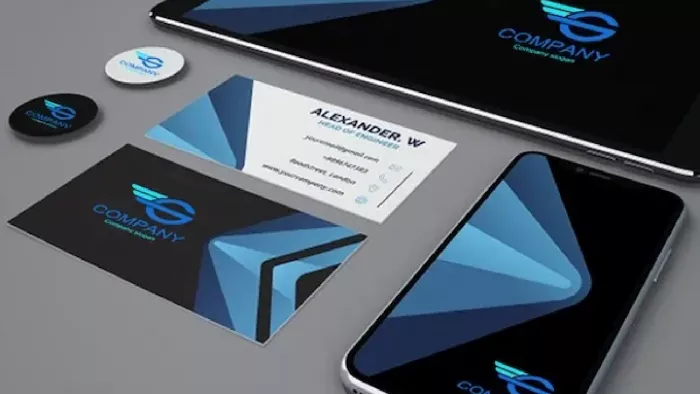
Creating a logo that will grab customers' attention is one of the main...

Enterprise software has a well-known failure mode. The demo goes great...
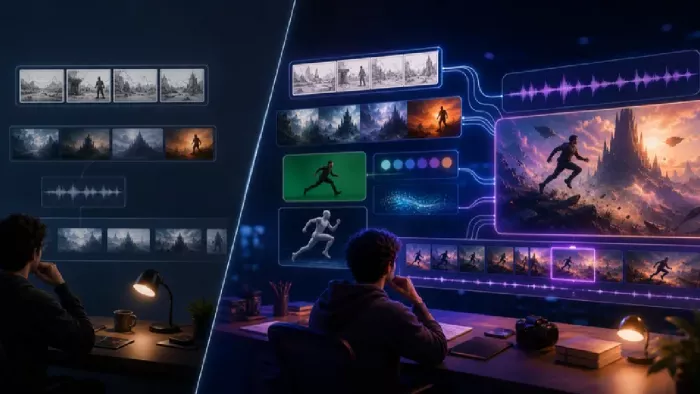
Most people who produce video at any real scale hit the same wall even...
A cinematic AI video needs more than realistic skin, dramatic lighting...

Have you noticed how difficult it is not to watch spoilers of a sporti...

Discussion