

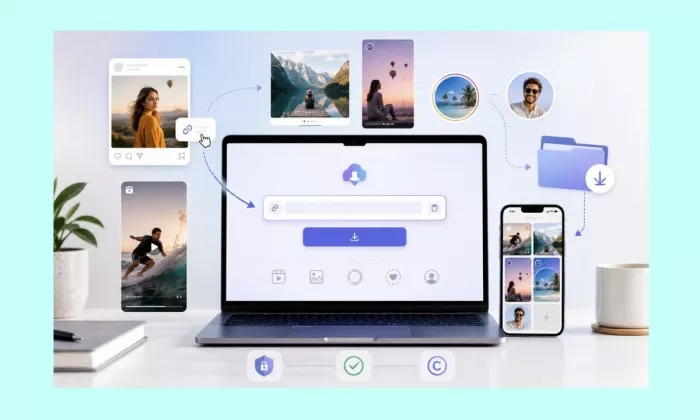
Instagram lets you bookmark a Reel or post with the Save button, but that only keeps it inside the app. There is no built-in button to pull the actual video or image file onto your phone or computer. Screen recording and screenshots are the usual workarounds, and both have drawbacks: a screenshot crops the image and captures your phone interface, and a screen recording often loses quality and picks up notifications.
Indown.io takes a different route. It is a browser-based Instagram downloader where you paste a public Instagram link, let the page fetch the media, and save the file directly. This guide explains how to use Indown.io the right way for Reels, videos, photos, Stories, Highlights, and profile pictures, on both mobile and desktop. It also covers the safety, permission, and copyright rules that matter just as much as the steps.
The short version of the workflow is the same everywhere: copy the Instagram link, open the matching Indown.io downloader page, paste the link, and download. The rest of this guide walks through each content type and the cautions that go with it.
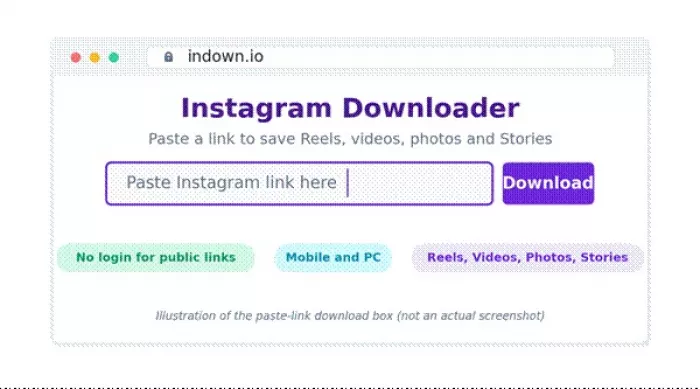
Indown.io works through a simple paste-link download box.
| Feature | Details |
| Tool name | Indown.io |
| Main use | Download Instagram Reels, videos, photos, Stories, Highlights, and profile pictures |
| Platform | Browser-based website |
| Login required | Official public download pages say no login or signup is needed for public downloads |
| Device support | Mobile, iPhone, tablet, and PC |
| Main workflow | Copy the Instagram link, paste it into Indown.io, then download |
| Best for | Saving public Instagram content for personal reference or backing up your own content |
| Main caution | Downloading a file does not give you ownership or reposting rights |
Indown.io is not a video editor, a scheduler, or an Instagram analytics tool. It is mainly a link-based Instagram downloader, so the two things that matter most are using the correct Instagram link and respecting who owns the content you save.
Every download starts with the link, so it helps to get this right before you open Indown.io at all.
1. Open Instagram.
2. Go to the Reel, video, photo, or Story you want to save.
3. Tap the three-dot menu or the share icon.
4. Choose Copy Link.
5. Keep the link copied before opening Indown.io.
1. Open Instagram in your browser.
2. Open the post or Reel.
3. Copy the URL from the browser address bar.
4. Paste it into Indown.io.
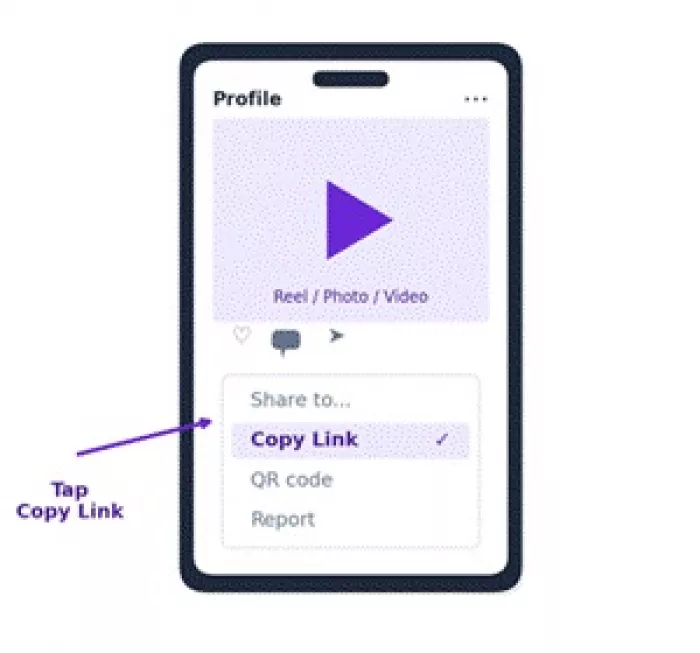
Copy the link directly from the Instagram post, Reel, or photo.
Indown.io's official video downloader page says you can copy an Instagram video link, open Indown.io, paste the link into the input box, let the tool sync the video, and then click the download button. The same page states that public video downloads do not require login or signup.
1. Copy the Instagram video link.
2. Open Indown.io in your browser.
3. Paste the video link into the download box.
4. Wait for the video to process.
5. Click the download button.
6. Save the file to your phone, tablet, or computer.
| Step | What to Do |
| Copy link | Use Instagram's copy link option |
| Paste link | Add it to the Indown.io input box |
| Process | Wait for the tool to fetch the video |
| Download | Click the download button |
| Check file | Play the video once after downloading |
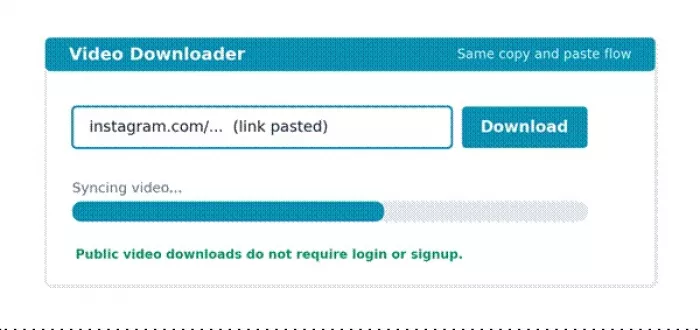
The video downloader works through the same copy-paste flow.
Indown.io has a dedicated Reels downloader page. Its official Reels page says you can paste the copied Reel URL into the input box, let the tool prepare the Reel, and then download it. The page also claims high-quality, watermark-free downloads.
1. Open the Instagram Reel.
2. Tap the share icon or the three-dot menu.
3. Copy the Reel link.
4. Open the Indown.io Reels downloader page.
5. Paste the link into the box.
6. Wait for the downloadable result.
7. Click download.
8. Open the saved file and check the quality.
Tip: If the Reel does not process, copy the link again from Instagram and refresh the Indown.io page before retrying.
| Reels Download Issue | Possible Fix |
| Link not working | Copy the Reel link again |
| Download button not showing | Refresh and paste again |
| Poor quality | Check the original Reel quality |
| File not saving on phone | Check browser download permissions |
| Reel unavailable | The post may be deleted, restricted, or private |
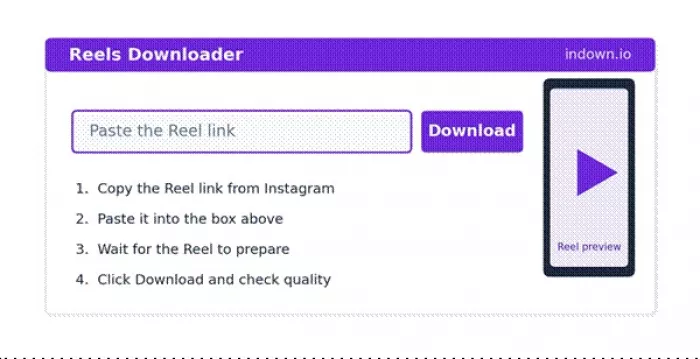
Paste the Reel link into the Reels downloader page.
Indown.io's photo downloader page says you can download Instagram photos in original picture quality, and that you can also save more than one image from posts that contain a carousel of photos.
1. Open the Instagram photo post.
2. Tap the three-dot menu.
3. Choose Copy Link.
4. Open the Indown.io photo downloader.
5. Paste the link.
6. Wait for the image result.
7. Download the photo.
8. Check whether all carousel images appear if the post has more than one photo.
This is better than a screenshot when quality matters, but it still needs to be used responsibly. Saving a photo does not give you permission to repost it, edit it, or use it commercially.
Indown.io has a dedicated Instagram Stories downloader page where you paste a Story link into the input box and click download.
1. Open the Instagram Story.
2. Copy the Story link, if it is available.
3. Open the Indown.io Story downloader page.
4. Paste the Story link.
5. Click download.
6. Save the Story file.
Important: Stories are more personal and more temporary than normal posts. Downloading someone's Story without permission can create real privacy problems. Use this only for your own Stories, public references, or content where you have clear permission.
| Story Type | Safer Action |
| Your own Story | Safe to back up |
| Brand Story | Ask permission before reuse |
| Friend's Story | Ask before saving or sharing |
| Private Story | Avoid unless permission is clear |
| Sensitive Story | Do not download or distribute |
Indown.io also has an Instagram Highlights downloader page, which says you can save Highlights to your phone gallery.
1. Open the Instagram profile.
2. Open the Highlight you want to save.
3. Copy the Highlight link, if it is available.
4. Open the Indown.io Highlights downloader page.
5. Paste the link.
6. Download the available media.
Note: Highlights often contain older Stories, so the same privacy and permission rules apply here as they do for Stories.
Indown.io has an Insta DP Viewer page that positions itself as a free profile picture downloader. There are a few reasonable reasons to use it.
• Saving your own profile picture.
• Checking the quality of your own profile image.
• Saving a public brand profile image for reference.
Caution: Do not use profile picture downloads for impersonation, fake accounts, harassment, or misleading edits. A profile photo belongs to the person who posted it.
The workflow is almost identical on every device. The main difference is where the file lands after you download it.
| Device | Best Workflow | Notes |
| Android phone | Copy the link in the Instagram app, paste it in Chrome | Check the download folder or gallery |
| iPhone | Copy the link in the Instagram app, paste it in Safari or Chrome | File may save in Downloads or Files |
| Desktop | Copy the post URL from the browser, paste it in Indown.io | Easier for organizing many files |
| Tablet | Same as the mobile browser flow | Works well for quick saves |
Indown.io's official video downloader page says it works across mobile phones, iPhones, tablets, and PCs.
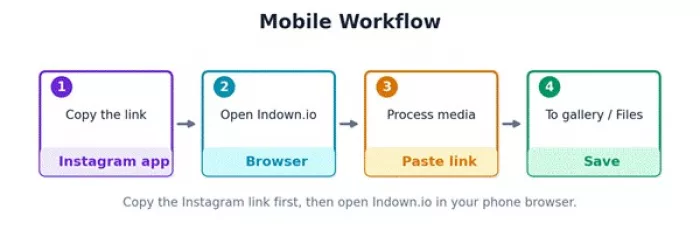
On mobile, copy the Instagram link first, then open Indown.io in your browser.
For public Instagram video and photo downloads, Indown.io's official pages say that login or signup is not required.
Private content works differently. Indown.io has a private downloader page that says you need to be logged into Instagram in the same browser to access private downloads.
Public downloads are safer because they never ask for your Instagram credentials. Private content deserves more caution. Even when you can technically access private content, downloading or sharing it without permission can break someone's trust, harm their privacy, and violate Instagram's terms.
This is the part most people skip, and it is the part that matters most.
• Use Indown.io mainly for your own content, backups, offline reference, or permitted public content.
• Do not repost someone else's Reel, video, photo, or Story without permission.
• Always credit the original creator if you have permission to reuse their content.
• Do not use downloaded content in ads, client work, or commercial pages without rights.
• Do not download private content unless you own it or have clear consent.
• Do not use profile pictures for impersonation or a fake identity.
• Do not save sensitive personal content.
• Follow Instagram's terms and your local copyright rules.
| Use Case | Safer Approach |
| Saving your own Reel | Good for a backup |
| Saving public content for inspiration | Keep it private and do not repost |
| Reposting a creator's video | Ask permission first |
| Using content in a brand campaign | Get written rights |
| Downloading a private Story | Avoid without consent |
| Saving profile pictures | Do not misuse them |
Most failed downloads come down to a handful of causes. Work through these before assuming the tool is broken.
| Problem | Possible Reason | Fix |
| Link does not process | Wrong or incomplete link | Copy the link again |
| Download button missing | Page did not fetch the media | Refresh and retry |
| Video quality looks low | Original upload was low quality | Try another source |
| Story does not download | Story may be expired or private | Check availability |
| File not saving on phone | Browser permission issue | Check the downloads folder |
| Private content not working | Access restriction | Avoid unless permission is clear |
| Too many redirects | Popup or ad behavior | Close popups and use the correct domain |
| Download fails | Temporary Instagram or tool issue | Retry later |
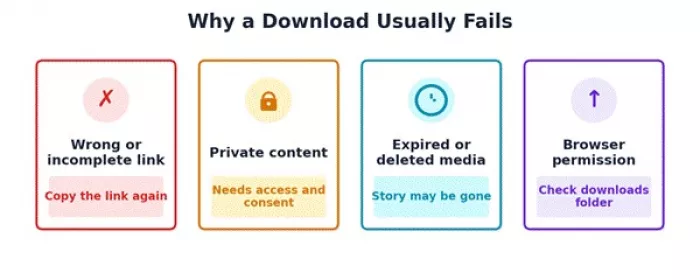
Most download issues happen because of wrong links, private content, or expired media.
• Copy the link directly from the original post.
• Use public Instagram links whenever possible.
• Avoid edited or reposted low-quality versions.
• Check the downloaded file before you use it.
• Rename files right away if you are saving them for research.
• Keep creator names in your notes if you use content as reference.
• Do not upload downloaded content elsewhere without permission.
• Use a desktop if you need to organize many files.
If a download fails, or you simply want a different route, a few options cover the same ground. Instagram's built-in Save feature keeps posts inside the app, screen recording works for a quick personal capture, and a screenshot is fine for simple image reference. Other Instagram downloaders such as SnapInsta, iGram, SaveInsta, Inflact Downloader, and Toolzu Downloader can act as backups when one tool fails. When you actually plan to reuse content, a creator-provided download or direct permission is always the safest path.
| Alternative | Better For |
| Instagram Save | Saving posts inside Instagram |
| Screen recording | A quick personal capture |
| Screenshot | Simple image reference |
| SnapInsta, iGram, SaveInsta | Backup options if one downloader fails |
| Creator permission or download link | The safest path for reuse |
Indown.io is useful when you need a quick, browser-based way to download Instagram Reels, videos, photos, Stories, Highlights, or profile pictures by pasting a link. The easiest workflow is always the same: copy the Instagram link, open the right Indown.io downloader page, paste the link, and save the file.
The important part is responsible use. Downloading a file does not mean you own it. Treat Indown.io mainly as a tool for personal reference, backups of your own content, or content where permission is clear. For reposting, brand campaigns, or commercial work, you still need the creator's permission, and ideally written rights.
Marketing teams often need images before a product is ready for a phot...
Creating a logo that will grab customers' attention is one of the main...

Enterprise software has a well-known failure mode. The demo goes great...
Most people who produce video at any real scale hit the same wall even...
A cinematic AI video needs more than realistic skin, dramatic lighting...
Have you noticed how difficult it is not to watch spoilers of a sporti...
Discussion