

I tested Pica AI because I had three ordinary photo problems that most people run into. One image looked dull and slightly blurry. One selfie needed to look more professional for profile use. And one face swap idea seemed fun, but I did not want it to come out obviously fake. Pica AI claims to handle all three jobs from one place through its Enhance, Headshot+, and Face Swap tools, so I used it the way a normal user would, not the way a designer with Photoshop level expectations would.
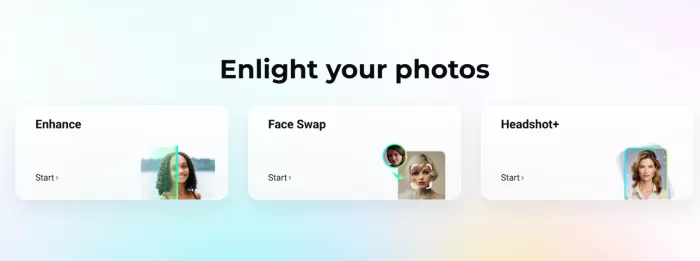
The official site is clear about what it sells. The homepage leads with one click image enhancement, a free online face swap, and AI headshot style portraits, and it currently shows a banner noting that Photo Enhancer was upgraded to Artguru on October 31, 2025. That focus is exactly why I wanted to test it, not as a do everything editor, but as a quick fix for three very common needs.
This review keeps to three questions:
1. Can Pica AI make a weak photo look cleaner?
2. Can it create a headshot that still looks like me?
3. Can its face swap produce a usable image without looking awkward?
Everything below answers those questions through the actual tool experience, not through marketing copy.
I did not judge Pica AI like a professional retouching suite. I judged it as a quick AI editor for people who want better photos without learning layers, masks, or manual retouching. That framing matters, because Pica AI is at its strongest when expectations stay practical: cleaner images, better profile photos, and quick face swaps.
| Test | Input used | Tool tested | What I checked |
| Photo cleanup | A slightly blurry, low detail portrait | Pica AI Enhance | Sharpness, skin texture, noise, background clarity |
| Profile image | A casual selfie | Pica AI Headshot+ | Face similarity, clothes, background, professional feel |
| Creative edit | A clear, front facing face photo | Pica AI Face Swap | Face alignment, skin tone, lighting, edges, expression |
How I approached it: this review is based on working through Pica AI's three core tools with the three sample images above, alongside a close read of the current product pages and privacy policy. Results depend heavily on the input image, so treat the findings as guidance rather than guarantees.
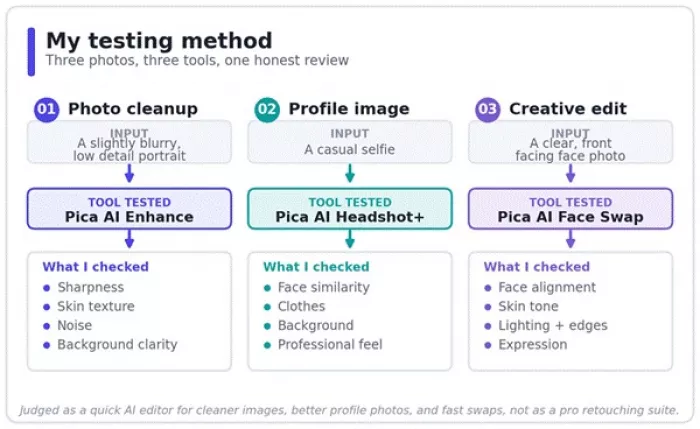
My testing method: three photos, three tools, and what I checked in each.
The first thing I noticed is that Pica AI does not behave like Canva or Photoshop. It feels more like a choose the tool, upload the photo, wait for the AI experience. That is good if you want speed, and less ideal if you want to adjust every small detail yourself.
Pica AI positions Enhance, Face Swap, and Headshot+ as visible core tools on its homepage, so finding the right starting point takes seconds. The upload flow is simple, outputs arrive without much waiting, and there is almost no settings panel to get lost in. The flip side is that there are very few manual controls, so when a result is not quite right, the main option is to generate again rather than fine tune.
| First impression area | My finding |
| Ease of starting | Simple enough for beginners |
| Tool focus | Enhance, Face Swap, and Headshot+ are easy to find |
| Manual control | Limited compared with professional editors |
| Best use style | Upload, generate, compare, export |
| Biggest early question | Whether credits and pricing feel fair after several tests |
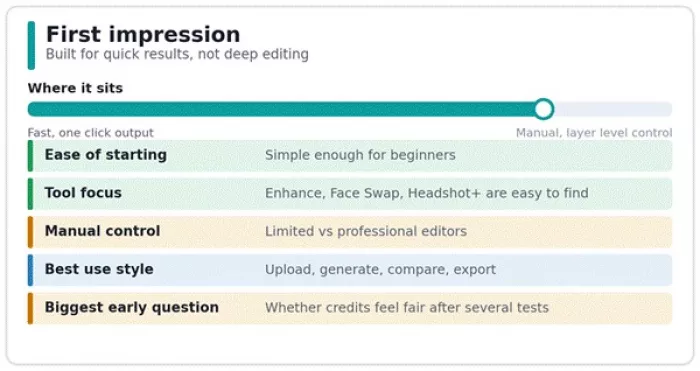
First impression at a glance: fast and simple, with little manual control.
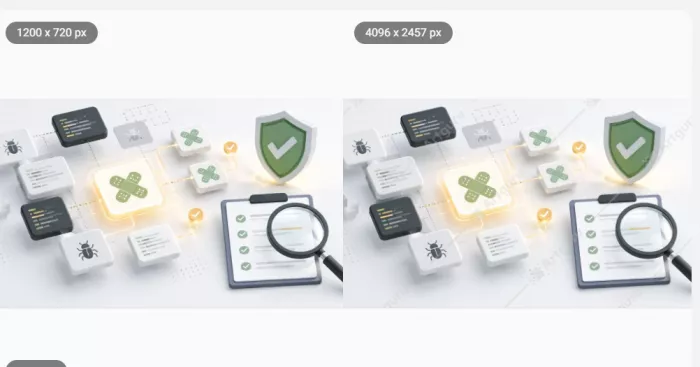
I started with the Pica AI Photo Enhancer because it is the most useful feature for everyday users. Most people do not need advanced editing software. They just want to fix a soft selfie, improve an old image, sharpen a profile photo, or make a low-resolution picture look cleaner.
Pica AI describes its enhancer as a one-click tool that can sharpen photos, reduce blur, improve clarity, and enlarge images up to around 4x. In my test, the result looked noticeably cleaner, especially when comparing the smaller original image with the enlarged output.
The photo I used was not completely ruined, but it had common problems: soft details, weak sharpness, slightly flat lighting, and a lack of definition. After enhancement, the image looked brighter, clearer, and more usable. The face and main subject gained more structure, the overall scene looked less dull, and the final output felt more suitable for a profile photo, casual upload, or social media post.
The best improvement was overall clarity. Pica AI made the image look more polished without needing manual editing. The enlarged version also held up better than expected from a distance, which is useful if you want to improve an image for web use or a personal profile.
However, the tool is not perfect. When you zoom in closely, some areas can look slightly artificial. AI enhancers often smooth skin too much, sharpen hair unevenly, or make fine background details look less natural. Pica AI has the same limitation. It improves photos that are already usable, but it cannot fully recover images that are extremely blurry, badly compressed, or missing important details.
| Enhancer Check | My Finding |
|---|---|
| Sharpness | Improved clearly on slightly soft photos |
| Face clarity | Looked cleaner and more defined |
| Skin texture | Better from a distance, but slightly smoothed up close |
| Hair detail | Sharper, though some parts can look artificial |
| Background | Cleaner overall, but not fully natural in every area |
| Low-light photos | Results depend heavily on the original image |
| Very blurry photos | Do not expect a perfect recovery |
| Upscaling | Useful for making small images look larger and cleaner |
| Best use | Profile photos, old casual photos, social posts, web images |
| Not ideal for | Professional retouching, ecommerce images, or badly damaged photos |
Pica AI Photo Enhancer works best when the original photo is almost good but needs extra polish. It can make soft images clearer, improve profile-style photos, and create a cleaner version for casual use. But it is not a magic repair tool. If the image is extremely blurry, heavily compressed, or missing facial detail, the output may still look weak or slightly AI-generated.
For everyday users, this is one of Pica AI’s most practical tools. For photographers, ecommerce sellers, or anyone needing professional-grade retouching, it may feel too automatic and limited.
Here is the order I would actually follow. First, I would start with the clearest version of the photo rather than a screenshot pulled from WhatsApp or Instagram, because better input always gives better output. Then I would upload it to Pica AI Enhance and generate a single result. After that, I would compare the original and the enhanced version side by side, paying attention to the eyes, the hairline, the teeth, the skin texture, and the edges of the background. If the enhanced image looks too smooth or too sharp, I would keep it for casual use only and avoid it for anything professional.
| Step | What I do | Why it matters |
| 1 | Upload the clearest original photo | Better input gives better output |
| 2 | Run Enhance once | First result shows whether the photo is recoverable |
| 3 | Zoom into face and hair | AI artifacts often appear there |
| 4 | Compare original vs output | Avoid over edited results |
| 5 | Export only if it looks natural | Natural output matters more than extreme sharpness |
My rule: If the improved image looks better within two seconds and still looks natural after I zoom in, it is usable.
After testing the photo enhancer, I moved to the Pica AI Headshot Generator because this is one of the features many users may try for LinkedIn photos, resumes, profile pictures, and business-style portraits.
At first, the tool looked simple. Pica AI showed different headshot styles, including formal suits, business portraits, clean profile looks, and outdoor professional-style images. I selected one style and continued to the next step.
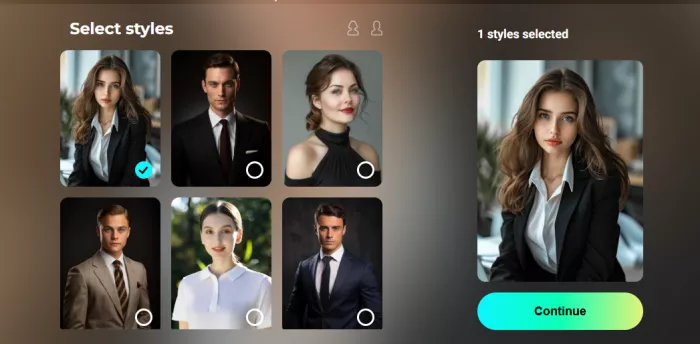
The interface then asked me to upload 6–12 selfies. It also showed examples of what kind of photos work best: clear solo selfies, no group photos, no blurry images, and no sheltered or blocked face photos. This part is useful because AI headshot tools usually need multiple clear face images to create better results.
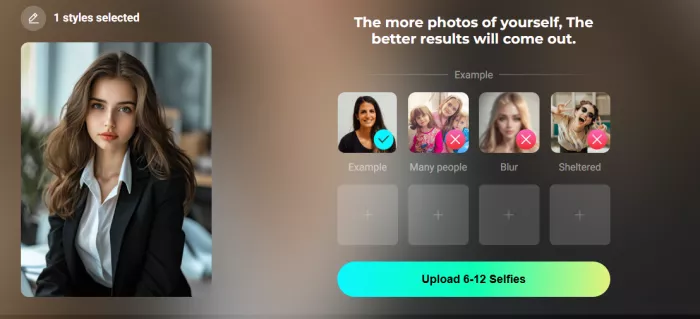
However, this is where my test stopped. After selecting the headshot style and reaching the selfie upload step, the tool became stuck. I could not move further in the process, so I was not able to complete the headshot generation or judge the final output quality.
This is important because the feature may look polished on the front end, but the actual user experience depends on whether the upload and generation process works smoothly. In my case, it did not.
| Headshot Check | My Finding |
|---|---|
| Style selection | Simple and easy to understand |
| Headshot templates | Professional-looking options available |
| User guidance | Clear instructions for uploading selfies |
| Selfie requirement | Needs 6–12 selfies for better results |
| Photo quality rules | Avoid group photos, blurry photos, and blocked faces |
| Ease of use | Good until the upload step |
| Main issue | The tool got stuck and I could not continue |
| Final output quality | Could not be tested because generation did not complete |
| Best use case | Potentially useful for LinkedIn, resumes, and profile photos |
| Current concern | Reliability of the upload/generation flow |
Pica AI Headshot Generator looks promising, but I could not complete the test because the tool got stuck at the selfie upload stage. The style selection page is clean, the templates look professional, and the instructions are easy to follow. But since I could not move past the upload step, I cannot confidently say that the final headshots are realistic, accurate, or worth paying for.
For now, I would treat this feature with caution. It may work better in another browser, after refreshing the page, or with smaller image files, but based on my test, the headshot tool did not deliver a complete experience.
A fair practical verdict is this: Pica AI’s headshot feature has a good setup, but the actual workflow needs to be more stable before I can recommend it confidently.
For a LinkedIn style test, I would upload a clear selfie with normal lighting and no heavy filters, and I would avoid sunglasses, side angles, group photos, and old images, because these tools need a clean face reference. Once Pica AI generates the headshot, I would check whether the face still feels like me, whether the eyes look natural, whether the clothing looks believable, and whether the background feels professional without looking fake.
| Step | My check | Pass or fail rule |
| Upload selfie | Clear, front facing, recent | Pass if the face is unobstructed |
| Generate headshot | Choose a professional style | Pass if the output keeps identity |
| Zoom into face | Check eyes, teeth, skin, hair | Fail if the face looks distorted |
| Check clothing | Suit or shirt should look natural | Fail if collar or buttons look strange |
| Check use case | LinkedIn, resume, portfolio | Pass only if it looks believable |
Important: Do not use AI headshots for government ID, legal documents, school records, employee verification, or anything that requires an actual verified photograph.
Face Swap is easily one of the most entertaining Pica AI features, but it is also the one that needs the most caution. Pica AI presents it as a tool for swapping faces in photos, cartoons, artworks, famous paintings, memes, and social-style images. It also supports short videos and even images with more than one face, which gives it a wider creative use case than a basic photo-only swap tool.
I treated it strictly as a creative feature, not as a way to imitate or impersonate anyone. In my testing, the best results came when the source face and the target image had a similar angle, similar lighting, and reasonably clear facial detail.
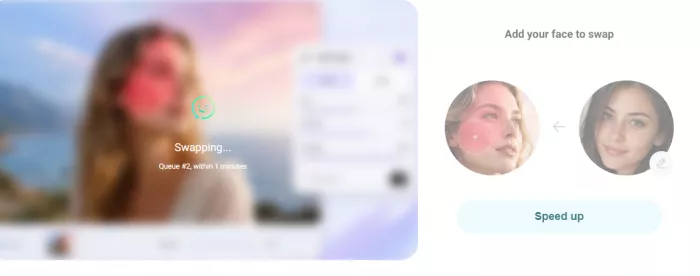
When those conditions matched, the swap looked much smoother. But when the face angle changed too much or the lighting between the two images was very different, the result started to look clearly edited.
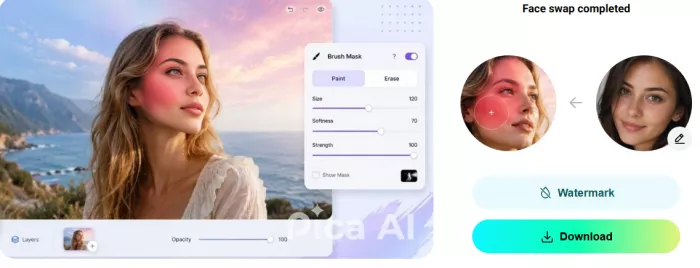
The biggest problem areas were usually the same: hairline, jawline, and skin tone blending. These are the first places I would check because that is where a face swap either looks convincing enough for casual use or starts to fall apart. In more playful formats like cartoons, artworks, and memes, the tool performed better because those styles naturally hide small imperfections. Realistic portrait swaps were much less forgiving and needed closer review.
| Face Swap Test Area | My Finding |
|---|---|
| Clear front-facing source photo | Best result |
| Similar target angle | More natural blending |
| Different lighting | Output can look pasted in |
| Side-angle target | Alignment may weaken |
| Hairline and jawline | Must be checked manually |
| Cartoon or artwork swap | Works better for fun than realism |
| Meme-style output | Usually more forgiving |
| Realistic portrait swap | Needs careful review |
Pica AI Face Swap works best as a casual creative tool. It is strongest for memes, fun edits, profile experiments, and entertainment-style images where perfect realism is not the goal. It becomes much weaker when you expect a flawless, cinematic, or deepfake-style result.
My practical verdict is simple: the more realistic the use case, the more carefully the output needs to be checked. For casual and playful content, it can be enjoyable and usable. For anything serious, the imperfections become much easier to spot.
To get a better swap, I would start with a clear source photo where the face is fully visible, front facing, and not hidden behind sunglasses or heavy shadow. Then I would choose a target image with a similar face angle. After generating the swap, I would check the forehead, the jawline, the neck, the ears, and the skin tone first, because those areas reveal the edit fastest. If the lighting feels mismatched, I would not use the result for anything serious.
| Step | What I would do | Why it helps |
| 1 | Use a clear source face | Helps the AI understand face structure |
| 2 | Match the face angle | Reduces awkward alignment |
| 3 | Match lighting if possible | Makes skin blending more natural |
| 4 | Check jawline and hairline | These reveal fake looking swaps |
| 5 | Use only with consent | Prevents misuse and ethical issues |
Safety and consent: The face swap feature should never be used to create non consensual edits, fake evidence, impersonation, harassment, misleading political content, adult style manipulation, or anything that could damage someone's reputation.
Pica AI runs on credits, and it does have a free tier, so you can try the tools before paying. Beyond that, I would treat every number carefully. AI tools change their credits, paid plans, free limits, and export rules often, and different listings already disagree. The developer's own app listings and various third party pages have shown free daily credits alongside weekly, monthly, and annual options. Because of that, the only pricing that should guide a buying decision is what appears on the official Pica AI pricing page on the day you check.

Because all three tools depend on uploading a face, privacy is a fair thing to ask about. Pica AI is operated by Wegital HK Limited, and its privacy policy is reasonably specific. The policy states that Pica AI does not use its technology to identify or authenticate people in the photos or videos you upload, and that it does not sell your photos or videos. It also says your uploaded photos are not used to train its AI, although content you generate may be.
The policy defines Face Data as information that estimates the location and shape of facial features, notes that this may count as biometric data depending on where you live, and states that Face Data is used only to enhance your photos and create the AI photos and videos you request, unless you give specific consent for other processing. Uploads are encrypted and stored in the cloud, data is transferred to servers in the United States, and it may also be accessed from the company's offices in mainland China and Hong Kong.
None of that removes the basic rule for any AI photo tool: once a face leaves your device, it is out of your hands. I would only upload images I own or have clear permission to use, I would keep sensitive or private photos off the platform entirely, and I would never run a face swap on someone who has not agreed to it.
After working through the three tools, a clear pattern showed up.
| Tool | Best result came from | Main weakness | My practical verdict |
| Enhance | Slightly blurry or dull photos | Cannot fully rescue very bad images | Good for quick cleanup |
| Headshot+ | Clear selfies with natural lighting | Some outputs may look too AI polished | Useful for profiles if carefully selected |
| Face Swap | Matching angles and clear faces | Lighting and edge mismatch | Fun and usable, but consent is essential |
I would not call Pica AI a professional editor. I would call it a quick AI photo assistant. It shines when the job is simple: make this photo cleaner, build a better profile image, or try a creative face swap. It gets weaker the moment you need exact control, true retouching, or guaranteed realism.
| User type | Should they try Pica AI? | Reason |
| Casual user | Yes | Easy photo cleanup and fun edits |
| Social media creator | Yes | Face swap and quick visuals are useful |
| LinkedIn user | Maybe | Headshots can work if they look realistic |
| Student | Yes | Simple edits without complex software |
| Small business owner | Maybe | Good for profile photos, not product shoots |
| Photographer | No as a main tool | Too little manual control |
| Designer | No as a main tool | Not enough precision |
| Ecommerce seller | Not ideal | Needs better product specific editing |
| Heavy face swap user | Maybe | Compare with Remaker AI or DeepSwap |
If I only needed quick social visuals, Pica AI would make sense. If I were preparing brand visuals, client photos, or ecommerce images, I would use it only as a helper, not as the final editing tool.
No single tool wins every category, so it helps to know where a specialist might beat it.
| Alternative | Compare it with Pica AI for |
| Remaker AI | Face swap and broader AI image tools |
| Reface | Video and GIF face swaps |
| FaceApp | Selfie transformations and filters |
| Cutout Pro | Background removal and image cleanup |
| Fotor | General AI photo editing and design |
| Picsart | Social media design and creative edits |
| DeepSwap | Higher quality face swap focus |
| YouCam Perfect | Mobile selfie retouching |
Pica AI's real advantage is convenience, since it keeps Enhance, Headshot, and Face Swap close together under one account. But if one of those jobs matters far more than the others, a focused tool may give you a better result.
After focusing on Enhance, Headshot+, and Face Swap, I would describe Pica AI as a practical tool for quick photo improvements rather than a serious editing replacement. The enhancer is genuinely useful for cleaning up slightly weak photos. The headshot tool can produce profile ready images when the input selfie is clear and the output is checked carefully. The face swap tool is fun and surprisingly handy for casual creative edits, as long as it is used responsibly and with consent.
I would recommend Pica AI to casual users, creators, students, and anyone who wants quick visual experiments. I would not lean on it as the main tool for professional retouching, ecommerce product photos, official ID style images, or sensitive face edits.
The best way to use Pica AI is to generate, zoom in, compare, and then decide. Do not trust the first output simply because it looks polished.
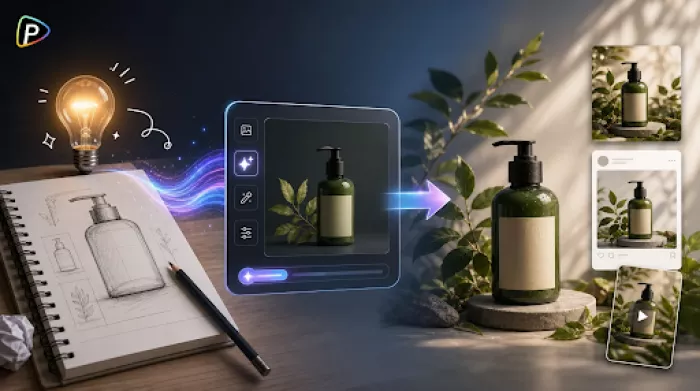
Marketing teams often need images before a product is ready for a phot...
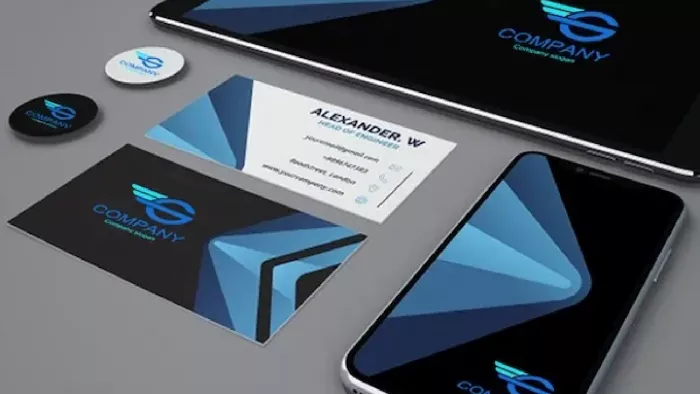
Creating a logo that will grab customers' attention is one of the main...
Enterprise software has a well-known failure mode. The demo goes great...
Most people who produce video at any real scale hit the same wall even...
A cinematic AI video needs more than realistic skin, dramatic lighting...
Have you noticed how difficult it is not to watch spoilers of a sporti...
Discussion